> For the complete documentation index, see [llms.txt](https://guide.tisagroup.ch/stride/llms.txt). Markdown versions of documentation pages are available by appending `.md` to page URLs; this page is available as [Markdown](https://guide.tisagroup.ch/stride/website-configurator/branding.md).

# Branding

## Introduction

Branding settings allow for control of labels, images, and highlights colors visible on your website.

## Navigation

To access branding settings open the side bar, expand the Page Template section, enter the Global Page Elements module and click on the Branding panel.

<figure><img src="https://2228521341-files.gitbook.io/~/files/v0/b/gitbook-x-prod.appspot.com/o/spaces%2FhDGRCCRv2uDxb2GzqXRg%2Fuploads%2FGhL2e0hbhpZvzwc2462V%2F2025-03-31_13-59-17.gif?alt=media&amp;token=10e83c9a-c912-4123-9fea-ae3c4ab4d183" alt=""><figcaption></figcaption></figure>

## Configuration

### Settings

To give your page a title click on the title field and enter a desired name.

<figure><img src="https://2228521341-files.gitbook.io/~/files/v0/b/gitbook-x-prod.appspot.com/o/spaces%2FhDGRCCRv2uDxb2GzqXRg%2Fuploads%2F86x2ffZktqXlHf574BZq%2Fimage.png?alt=media&amp;token=4855ad24-9df7-4949-88e2-358c512fa89a" alt=""><figcaption></figcaption></figure>

To set up website background click on the theme field

<figure><img src="https://2228521341-files.gitbook.io/~/files/v0/b/gitbook-x-prod.appspot.com/o/spaces%2FhDGRCCRv2uDxb2GzqXRg%2Fuploads%2Ft67m7oEPBJayFXUWRjEd%2Fimage.png?alt=media&amp;token=317bb629-c442-476b-b981-aad2b5436be0" alt=""><figcaption></figcaption></figure>

To set up element highlight color click on the color field and point to a desired color.

<figure><img src="https://2228521341-files.gitbook.io/~/files/v0/b/gitbook-x-prod.appspot.com/o/spaces%2FhDGRCCRv2uDxb2GzqXRg%2Fuploads%2FohBixDQnRwScfdY7MFeh%2Fimage.png?alt=media&amp;token=94e4a5ab-145a-4099-90be-9bdc74e297ea" alt="" width="301"><figcaption></figcaption></figure>

\
Use color spectrum slider to select a color range.

<br>

<figure><img src="https://2228521341-files.gitbook.io/~/files/v0/b/gitbook-x-prod.appspot.com/o/spaces%2FhDGRCCRv2uDxb2GzqXRg%2Fuploads%2Fy86h5lyNbH4j8ND8IJwY%2Fimage.png?alt=media&amp;token=6f632c3e-f12a-41cc-a348-94750ab1d61a" alt="" width="301"><figcaption></figcaption></figure>

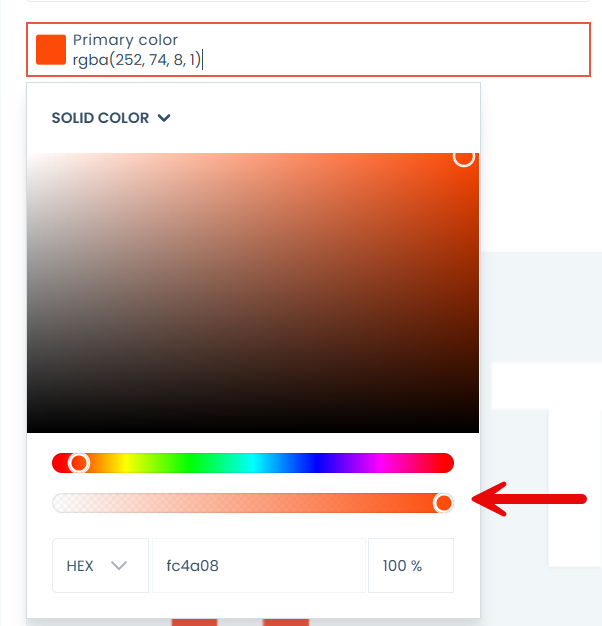
Use intensity slider to select color intensity.

<figure><img src="https://2228521341-files.gitbook.io/~/files/v0/b/gitbook-x-prod.appspot.com/o/spaces%2FhDGRCCRv2uDxb2GzqXRg%2Fuploads%2FPvJfHqraieiS3llFP8t2%2Fimage.png?alt=media&amp;token=da871c6b-ab84-4a9a-9c10-7d7087a05f08" alt="" width="301"><figcaption></figcaption></figure>

### Images

In Images component upload: , &#x20;

* a logotype image
* favicon image
* Meta Image

### Image

Upload a cover image by clicking the file from library button. ![](https://2228521341-files.gitbook.io/~/files/v0/b/gitbook-x-prod.appspot.com/o/spaces%2FhDGRCCRv2uDxb2GzqXRg%2Fuploads%2FAKdEEKf5xVZszsvJ5fii%2Fimage.png?alt=media\&token=e9ac46cc-cfea-4e64-b202-f7b4ba930d18)

Media Library will open.

<figure><img src="https://2228521341-files.gitbook.io/~/files/v0/b/gitbook-x-prod.appspot.com/o/spaces%2FhDGRCCRv2uDxb2GzqXRg%2Fuploads%2FtkiZekVMjuLRf3NQRAUL%2Fimage.png?alt=media&amp;token=96082657-806e-468d-970d-38d7418e3260" alt=""><figcaption></figcaption></figure>

Media Library allows you to browse folders and files.

To find a folder or a file use search field and type in at least 2 characters of the title.

<figure><img src="https://2228521341-files.gitbook.io/~/files/v0/b/gitbook-x-prod.appspot.com/o/spaces%2FhDGRCCRv2uDxb2GzqXRg%2Fuploads%2FoY38RwfbgM4boR91g0Ai%2Fimage.png?alt=media&amp;token=017025ff-386e-44d7-b401-a93456874358" alt=""><figcaption></figcaption></figure>

To sort files use the sorting field. You can sort files by creation date or by date in ascending and descending order.

<figure><img src="https://2228521341-files.gitbook.io/~/files/v0/b/gitbook-x-prod.appspot.com/o/spaces%2FhDGRCCRv2uDxb2GzqXRg%2Fuploads%2FLAwbyddVq0INW5dnW1DO%2Fimage.png?alt=media&amp;token=7c1866e9-f87e-4c82-b540-f2cc45dfb800" alt=""><figcaption></figcaption></figure>

To navigate use the navigation bar. Click the folder name to go to specific folder or click the home button to go to home page.

<figure><img src="https://2228521341-files.gitbook.io/~/files/v0/b/gitbook-x-prod.appspot.com/o/spaces%2FhDGRCCRv2uDxb2GzqXRg%2Fuploads%2FyoxA0nG1EijkBvBsJQoF%2Fimage.png?alt=media&amp;token=567676aa-658b-40f3-b384-020a946cdcdb" alt=""><figcaption></figcaption></figure>

To select a file just click on the file and push add selected button.<br>

<figure><img src="https://2228521341-files.gitbook.io/~/files/v0/b/gitbook-x-prod.appspot.com/o/spaces%2FhDGRCCRv2uDxb2GzqXRg%2Fuploads%2FdeAAOdWsibmDCnebQTle%2F2025-03-31_13-28-19.gif?alt=media&amp;token=089dd508-8132-4269-b83d-1269bab5bdcb" alt=""><figcaption></figcaption></figure>

#### File Upload

To add files click on add files button. An image upload field will open

<figure><img src="https://2228521341-files.gitbook.io/~/files/v0/b/gitbook-x-prod.appspot.com/o/spaces%2FhDGRCCRv2uDxb2GzqXRg%2Fuploads%2FEuQmJYjhZRBogW2KLC1f%2Fimage.png?alt=media&amp;token=ad0c3bea-8cb9-4966-b436-5b0e0c5f63ac" alt=""><figcaption></figcaption></figure>

&#x20;Drag files onto the grey field or push add files from disk button and file explorer will open. Select wanted files and push open. Files will load onto grey field.&#x20;

<figure><img src="https://2228521341-files.gitbook.io/~/files/v0/b/gitbook-x-prod.appspot.com/o/spaces%2FhDGRCCRv2uDxb2GzqXRg%2Fuploads%2FC0MJXULaAKJzdt7cMGeu%2Fimage.png?alt=media&amp;token=4758a2e4-f6e8-4b94-bc65-823f25f7bb80" alt=""><figcaption></figcaption></figure>

Now press add button.&#x20;

<figure><img src="https://2228521341-files.gitbook.io/~/files/v0/b/gitbook-x-prod.appspot.com/o/spaces%2FhDGRCCRv2uDxb2GzqXRg%2Fuploads%2FI01wNOh7crdq4VyPfueb%2Fimage.png?alt=media&amp;token=1fcf1091-bd38-46fd-96ac-5ff8d7cabe74" alt=""><figcaption></figcaption></figure>

Green notification will appear informing you about successful operation. The file should be labeled as added. \
\
Now you can close the upload window, add another one, or add uploaded file directly into the form.

If the notification is red there was an error with the file. Possibly the file already exist. If there is other problem for example with file size contact our support team.

To add the file directly to the form by pressing add selected or you can close the upload window.

## Publication

When the branding setup is complete, press save button located at the top of the form. To exit press the X button. The branding settings will be visible in couple minutes.&#x20;

<figure><img src="https://2228521341-files.gitbook.io/~/files/v0/b/gitbook-x-prod.appspot.com/o/spaces%2FhDGRCCRv2uDxb2GzqXRg%2Fuploads%2FQrZLgSkxaQqErwyHtzKM%2Fimage.png?alt=media&amp;token=6d8f4f91-1595-4f8f-b839-90f568274531" alt=""><figcaption></figcaption></figure>